Hot news

Instruct the bidding party to announce bidding results on DauThau.Net
The following article will guide you to announce the bidding results on DauThau.Net. To use the bidding results announcement feature in the new version that DauThau.Net just launched, you need to follow the instructions we share in the following article.

Nhấn VÀO ĐÂY để chuyển bài viết sang bản tin tiếng Việt
After taking the steps to clarify the bid documents, evaluate the bid and have the results of contractor selection, in order to announce the contractor selection results, we will do the following:
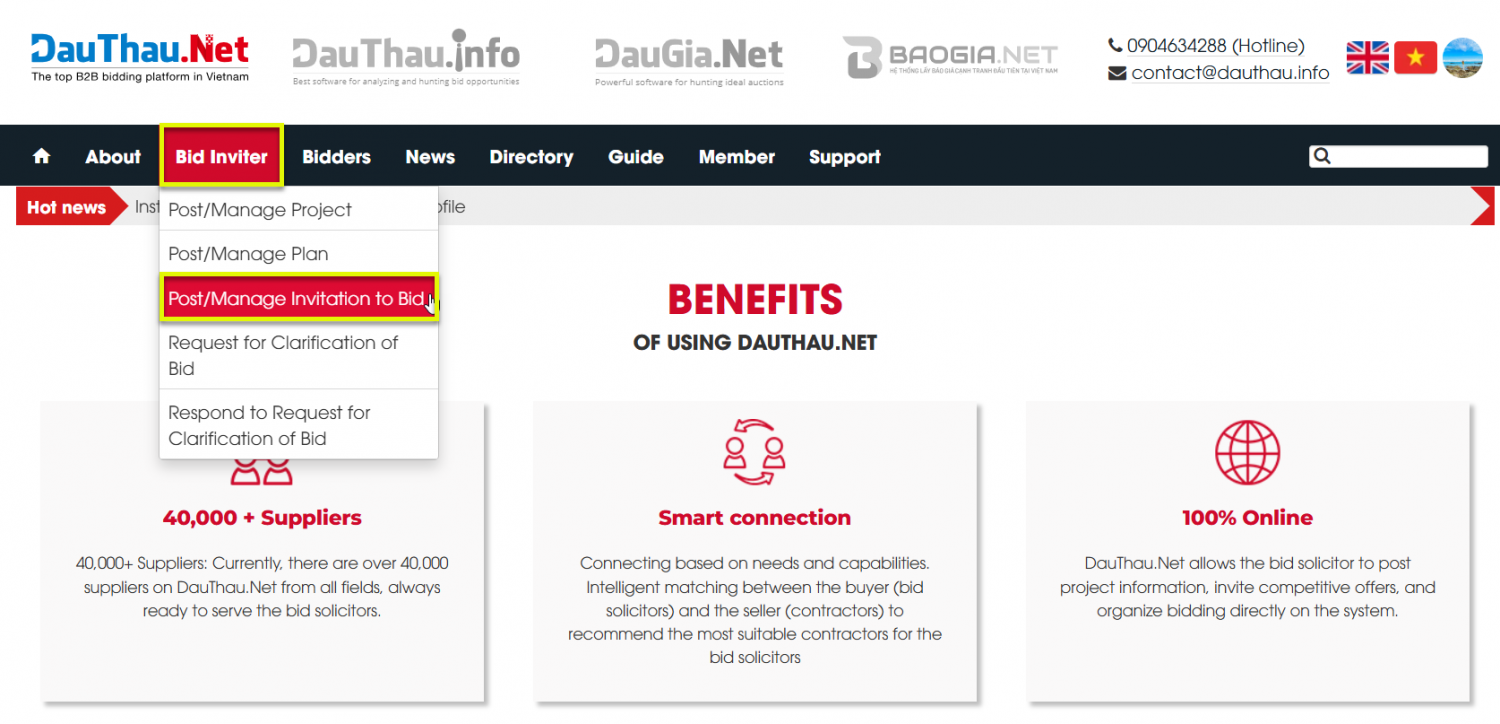
- Step 1: Access the menu and select Bid Solicitors > select Tender invitation notice management.
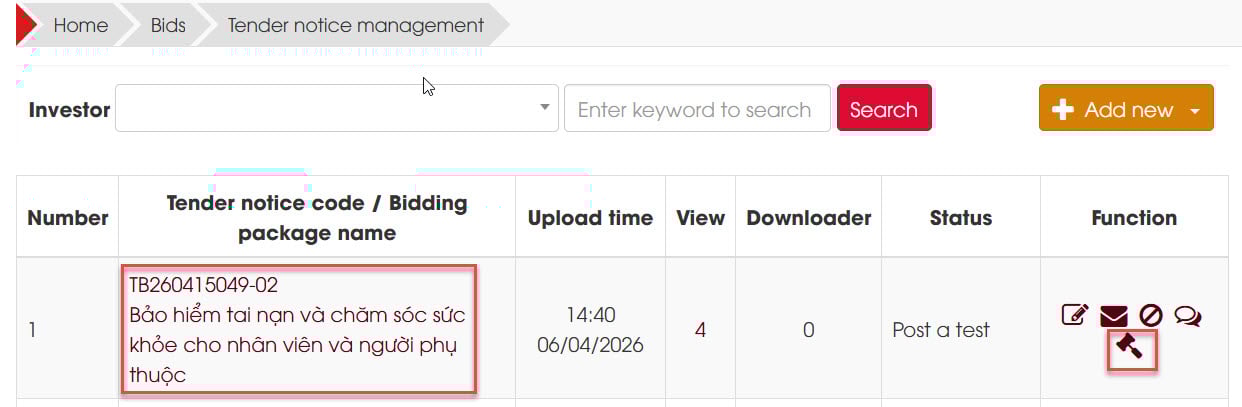
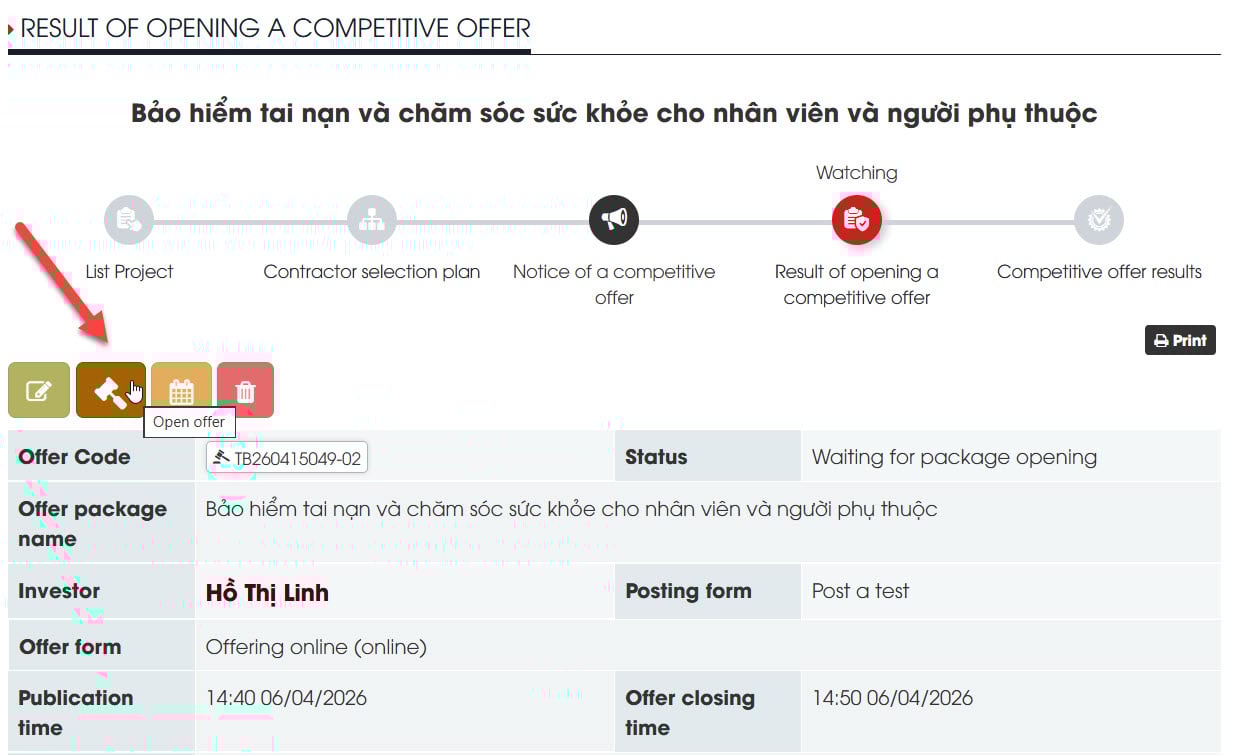
- Step 2: Select the tender package and the tender opening time -> Select the Open of bids action -> Select Opne Offer
- Step 3: After the successful bid opening, enter the information into the Slect Bidding form, including: Contractor, Winning price, Performed in -> Click Save results.
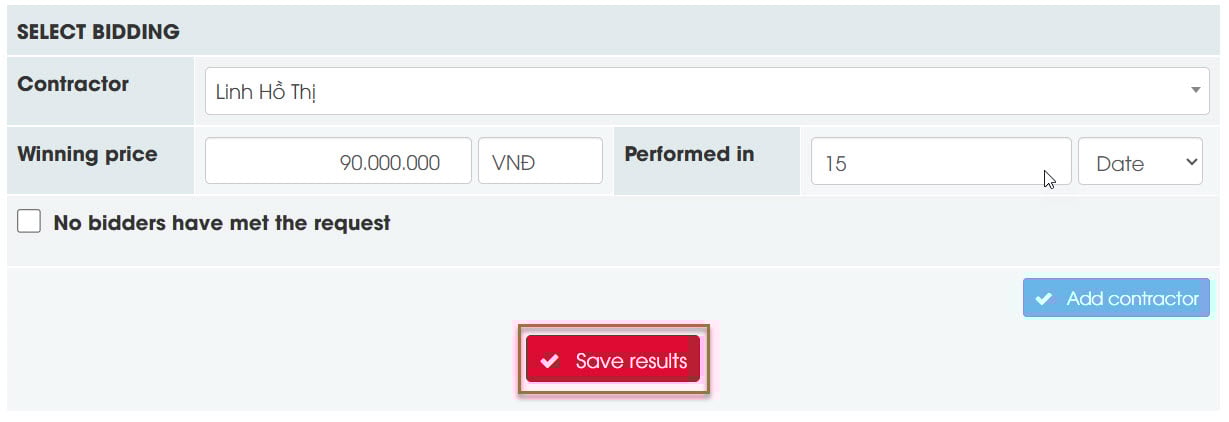
If no suitable contractor can be selected, the procuring entity should check No bidders have met the request -> Enter Enter reason -> Click Save results.
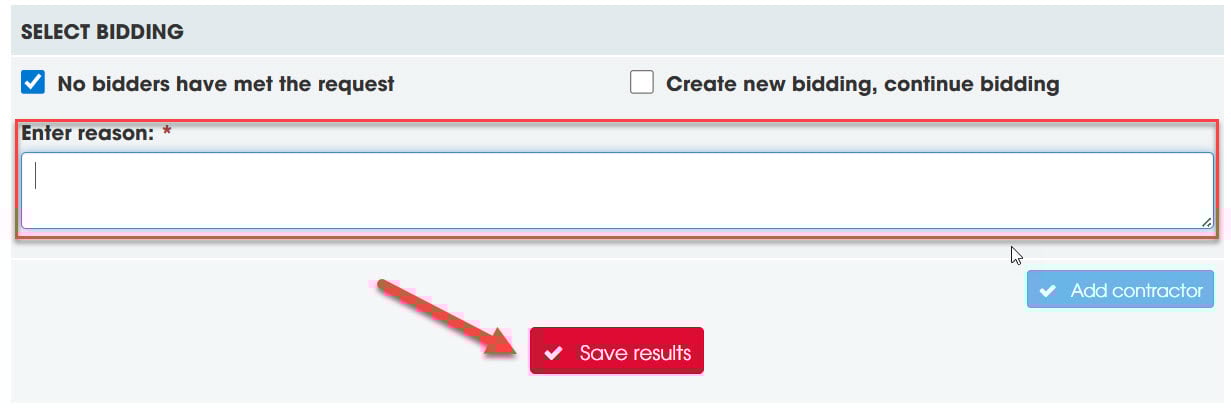
If you wish to continue creating tender notices, simply select Create new bidding, continue bidding -> Select Save results (See image).
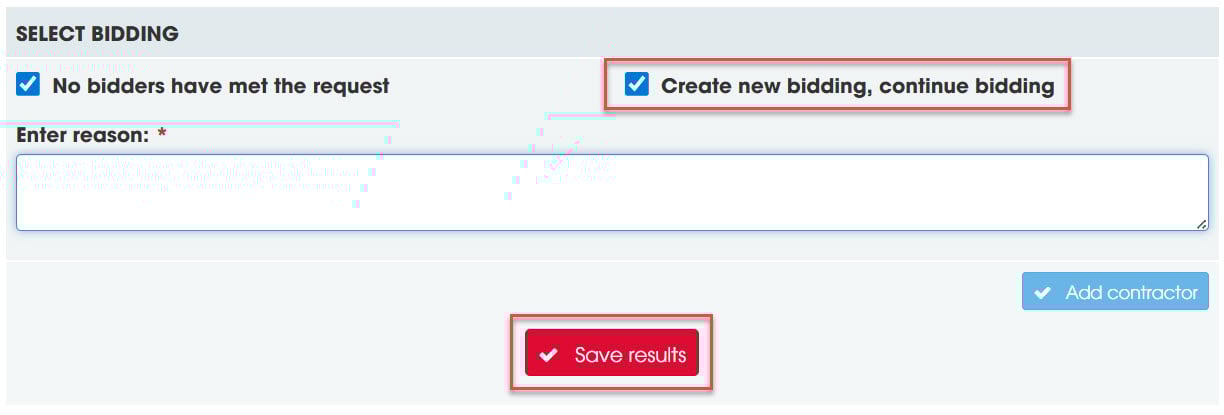
For creating a new tender notice to continue the bidding process, the system will allow you to create a tender notice page based on information copied from the previously issued tender notice. You can edit the information as needed to proceed with the bidding again.
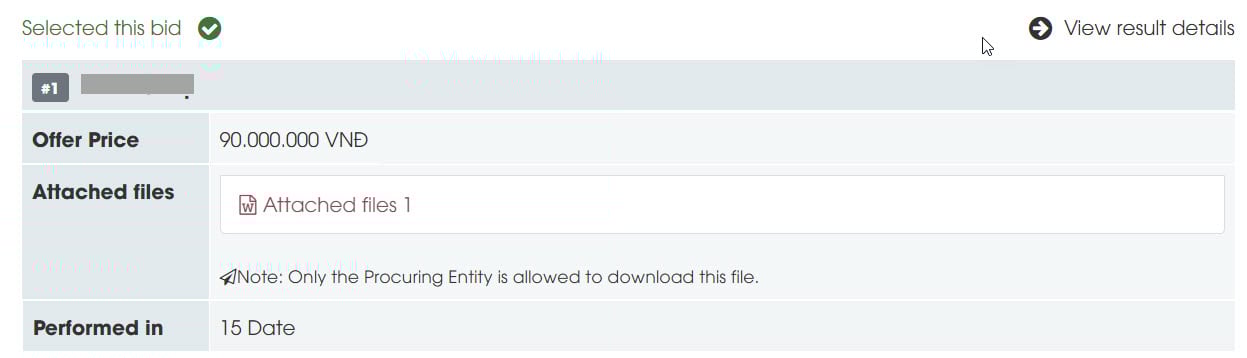
- Step 4: After entering all the necessary information into the tender opening results form as described above, bidders can view the tender opening results from the inviting party by going to Bidders -> Select Bid opening results available -> Select Bid wants to view the results.
The above is a guide on how to publish tender results on the private bidding network DauThau.Net. DauThau.Net currently offers free services and maximum support for businesses inviting bids, making purchases, and finding available suppliers on the system. Register as a member and verify your profile now!
If you require further assistance, please contact our specialists for advice via:
- Hotline: 0904.634.288 - 024.8888.4288
Email: [email protected]
Author: Linh Hồ Thị
Newer articles
Older articles
Search Bids
Vote
-
 View the history of business information changes—a feature that is available only on DauThau.Net!
-
 Guide on How to Use Points in DauThau.Net
-
 Instructions for authenticating personal/expert profiles
-
 DauThau.info was entered the TOP 60 of the National Innovation Startup Talent Competition - Techfest Vietnam 2020
-
 Bidding ecosystem is in the list of the top 60 businesses of the Startup Wheel 2021 contest
Welcome
You are not logged in, please login to use all member functions.
If you do not have a member account, please register.You can use your account at DauThau. info to login on DauThau. Net and vice versa!
This takes only 5 minutes and is completely free! Your account can be used in all our systems, including DauThau.info and DauThau.Net